
Notes & study
Lecture and study notes
Convert notes into a visual structure for review, comparison and revision.
Essay planning
Map out arguments, supporting points and source notes in a structured format.
Text 2 Mindmap
A fast, keyboard-friendly editor that turns plain text into structured mind maps you can rearrange, style and export.
Text-first editing · Visual mapping · Local-first
Privacy
Text 2 Mindmap is designed as a local-first tool. Documents live in your browser's storage — they are not uploaded to a server for processing, and there is no account to create.
No account required
Open the app and start working immediately. No sign-up, no profile.
No server uploads
Text and maps are processed in the browser. Content is not sent to a server for parsing or rendering.
Local-first storage
Documents are saved in your browser. You choose when to export or clear them.
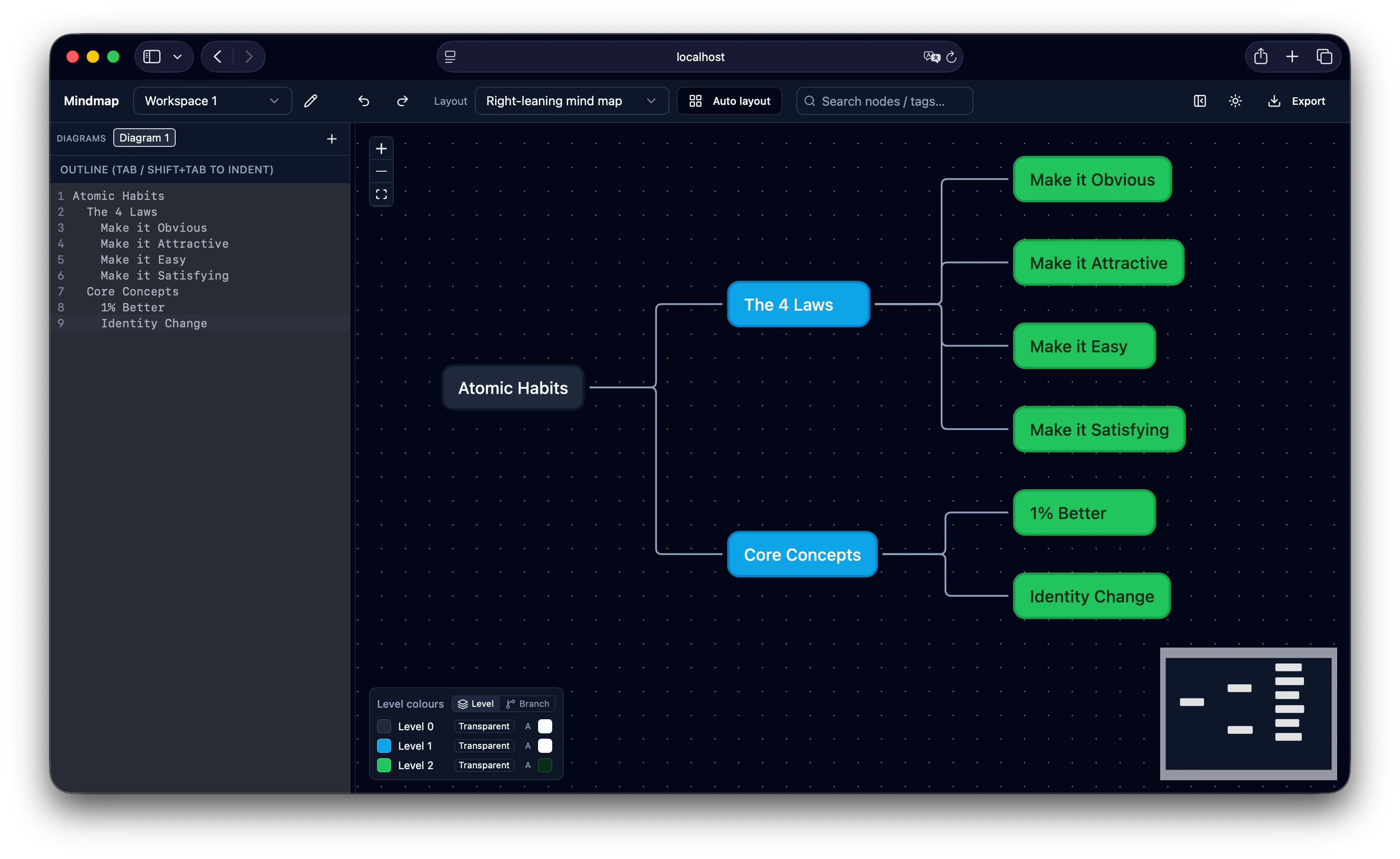
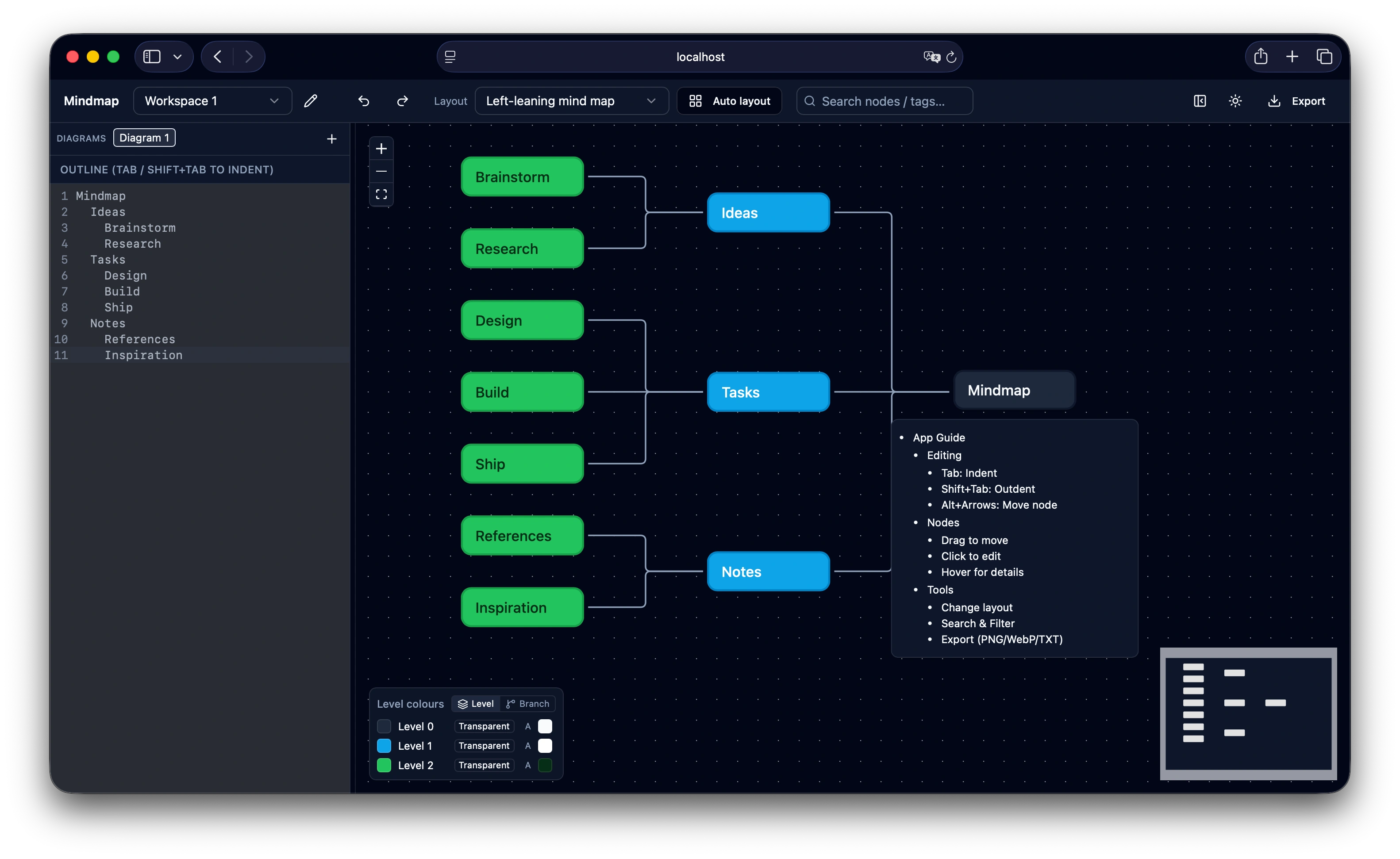
Text on the left, a live map on the right — the outline and the map stay in sync as you type.
Preview
Tab to indent, Enter for a new sibling, Shift+Tab to outdent. The outline and the map update together as you type.
Move from written notes to a visual structure without leaving one workflow. Type an outline with keyboard controls, review the generated map, then adjust the structure when it needs to change.
Tools for turning written structure into a clear visual map.
Use Tab to create a sub-node, or Shift+Tab to move back a level while outlining.
Attach context to nodes with details that support planning, research and documentation.
Switch between supported map and tree layouts to suit the structure of your content.
Reorganise the map by dragging nodes into the structure that best reflects your work.
Adjust branch and level colours to make larger maps easier to scan.
Organise work into dedicated spaces and use undo or redo while editing.
Export maps to text, JSON or image formats for practical reuse.
Useful for turning notes, plans and structured thinking into visual form.
Lecture and study notes
Convert notes into a visual structure for review, comparison and revision.
Essay planning
Map out arguments, supporting points and source notes in a structured format.
Project scoping
Outline requirements, adjust scope and export structured outputs for documentation.
Knowledge bases
Organise concepts, references and related decisions as a visual map.
System and flow diagrams
Map out code structures, API endpoints or user journeys with clear tree diagrams.
Content planning
Organise outlines, pillars and research notes in one visual structure.
Five steps from a blank page to a map you can export.
Open the editor and write your central idea.
Press Enter for a new line, Tab to create a sub-node, and Shift+Tab to outdent.
Select a node to review or add supporting details.
Drag nodes to change hierarchy, adjust colours and pick a suitable layout.
Export as an image, JSON or text file when the map is ready.
Documents are stored in your browser's local storage. They are not uploaded to a server for parsing or rendering.
The app is free to use. Reasonable limits may apply so the service can stay available for everyone.
No account is required. An internet connection is needed to load the app; once open, editing works in the browser.
Use the export options to save a copy, then import that file into another browser when you need to continue.
Start with text, shape the structure and export a visual map when it is ready.